Best WordPress Development Workflow for Freelancers (2026 Guide)
Ibrahim Monir
Full-Stack Developer
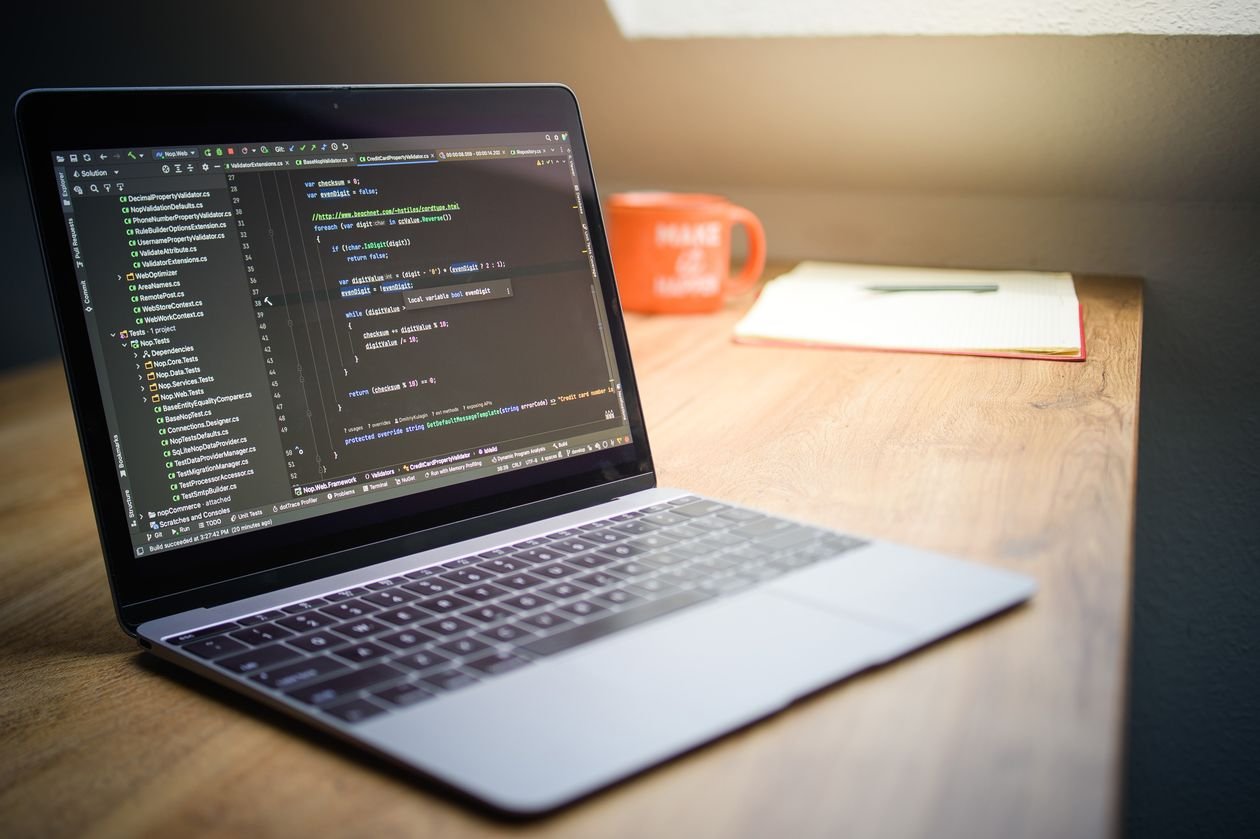
A repeatable 5-stage WordPress workflow for freelancers: build locally, version with Git, test on staging, deploy reliably, and maintain under a retainer — ship faster and break less in production.
The best WordPress development workflow for freelancers is a repeatable, five-stage pipeline: build locally, track everything in Git, test on a staging site, deploy with a reliable tool, and maintain under a retainer. This is the exact workflow I use to ship client sites faster, break fewer things in production, and get paid on time — without the chaos of editing live files over FTP.
If you are a freelance WordPress developer juggling multiple clients, the difference between a stressful project and a smooth one is rarely the code. It is the process. Below is a battle-tested workflow you can adopt this week, broken down step by step.
What is a WordPress development workflow?
A WordPress development workflow is the structured sequence of steps a developer follows to build, test, deploy, and maintain a WordPress website. A solid workflow separates three distinct environments — local (your machine), staging (a private test copy), and production (the live site) — so that changes are always tested before real visitors ever see them.
For freelancers, a good workflow does three things: it protects the live site from untested changes, it makes your work reproducible on any computer, and it lets you hand a project to a client (or another developer) without a mess.
Why freelancers need a repeatable workflow
Agencies have QA teams and DevOps engineers. Freelancers do not. When you work solo, the process is your safety net. A repeatable WordPress workflow gives freelancers four concrete advantages:
- Fewer production disasters. You never edit a live site directly, so a bad plugin update or a broken CSS change can't take a client's business offline.
- Faster onboarding across devices. With Git and a documented setup, you can clone a project onto any laptop and be running in minutes.
- Professional client handoffs. Clean version history and a staging link make you look like an agency, which justifies higher rates.
- Predictable, recurring income. A defined maintenance stage turns one-off builds into monthly retainers.
The 5-step WordPress development workflow for freelancers
Step 1 — Build on a local development environment
Never build a client site directly on live hosting. Instead, run WordPress locally on your own computer, where changes are instant and mistakes are harmless. The most popular local WordPress environments in 2026 are:
- Local (by WP Engine) — the easiest one-click option for beginners; spins up a full WordPress site in seconds.
- LocalWP / DevKinsta — free tools with built-in SSL, email testing, and one-click push to their respective hosts.
- Laragon or XAMPP — lightweight local servers for developers who want full control over PHP, MySQL, and virtual hosts.
- Docker (wp-env) — the most portable option; the official
@wordpress/envpackage defines your environment in code so it runs identically on any machine.
Rule of thumb: use Local or DevKinsta if you want speed and simplicity; use Docker or Laragon if you work across multiple computers and need consistency.
Step 2 — Put everything under version control with Git
Version control is the single biggest upgrade a freelancer can make to their WordPress workflow. Git tracks every change to your themes and plugins, lets you roll back mistakes instantly, and gives you a complete history of the project.
A practical freelancer setup looks like this:
- Version-control your custom code — the theme and any custom plugins — not the entire WordPress core.
- Add a
.gitignorethat excludeswp-config.php, theuploadsfolder, andnode_modules. - Host private repos on GitHub, GitLab, or Bitbucket so your work is backed up off your laptop.
- Write meaningful commit messages (e.g.
fix: mobile menu overlap on iOS) so future-you understands the history.
Even as a solo freelancer, Git is worth it: a single git revert can save you from an all-nighter when a change goes wrong.
Step 3 — Manage dependencies with Composer and npm
Professional WordPress projects treat plugins and build tools as code-managed dependencies rather than manual downloads. This makes projects reproducible on any machine.
- Composer manages PHP dependencies and can even install plugins and WordPress itself (via packages like
wpackagist). - npm manages front-end tooling — Sass compilation, JavaScript bundling, and asset minification.
- A build step (Vite, webpack, or
@wordpress/scripts) compiles your source files into optimized production assets.
The payoff: instead of emailing a 200 MB folder, you share a repo, and a teammate runs composer install and npm install to get an identical setup.
Step 4 — Test on a staging environment before going live
A staging site is a private, password-protected copy of the live website used to test changes safely. Every plugin update, theme change, and new feature should be verified on staging before it touches production.
Most managed WordPress hosts — including Kinsta, WP Engine, SiteGround, and Cloudways — offer one-click staging. The freelancer workflow is:
- Push your changes from local to staging.
- Test forms, checkout, mobile responsiveness, and page speed.
- Send the staging link to the client for approval.
- Only after sign-off, deploy to production.
Step 5 — Deploy with a reliable, repeatable method
Manual FTP uploads are error-prone and slow. A modern deployment method pushes only what changed and can roll back instantly. Freelancer-friendly options include:
- Git-based deployment via GitHub Actions, GitLab CI, or DeployHQ — code is pushed live automatically when you merge to the main branch.
- Host deploy buttons — Kinsta and WP Engine let you push staging to production in one click.
- WP Migrate or All-in-One WP Migration for moving databases and media between environments without breaking URLs.
Whatever you choose, the goal is the same: deployments should be boring, fast, and reversible.
Recommended tools for a freelancer WordPress workflow
- Local environment: Local by WP Engine, DevKinsta, or Docker (wp-env)
- Version control: Git + GitHub / GitLab / Bitbucket
- Dependencies: Composer (PHP) and npm (front-end)
- Code editor: VS Code with the PHP Intelephense and WordPress snippets extensions
- Staging & hosting: Kinsta, WP Engine, SiteGround, or Cloudways
- Deployment: GitHub Actions, DeployHQ, or WP Migrate
- Project & client management: Trello or Notion for tasks, and a simple contract + invoicing tool
Common workflow mistakes freelancers should avoid
- Editing the live site directly. The number-one cause of "the client's site is down." Always work local → staging → production.
- No backups before updates. Take a full backup (or a staging test) before every plugin or core update.
- Skipping version control. Without Git you have no undo button and no history.
- Ignoring performance and security. Optimize images, use caching, and keep plugins updated — clients notice slow, hacked sites.
- No documented handoff. Leave the client a short README: logins, plugin list, and how to update content.
Frequently asked questions
What is the best local environment for WordPress freelancers?
For most freelancers, Local by WP Engine is the best local environment because it's free and sets up a full WordPress site in one click. Developers who work across multiple computers should consider Docker (wp-env) for identical, reproducible environments.
Do freelancers really need Git for WordPress?
Yes. Even solo freelancers benefit from Git because it provides instant rollbacks, a full change history, and off-device backups. It also makes collaborating with other developers or handing off a project dramatically easier.
How do I move a WordPress site from local to live?
Test the site on a staging environment first, then deploy using a migration tool such as WP Migrate or All-in-One WP Migration, or a Git-based pipeline like GitHub Actions. Always update URLs in the database and take a backup before going live.
How much should the workflow cost a freelancer to set up?
The core stack can be free: Local, Git with a free GitHub account, Composer, and npm cost nothing. The only paid pieces are managed hosting with staging (typically $20–$40/month) and optional deployment services.
Final thoughts
The best WordPress development workflow for freelancers isn't about using the most tools — it's about having a consistent, repeatable process: build locally, version with Git, test on staging, deploy reliably, and maintain under a retainer. Adopt even two or three of these stages and you'll ship higher-quality sites, sleep better on launch day, and command the rates of a professional rather than a hobbyist.
Start small: set up a local environment and put your next project in Git. Once that feels natural, add staging and automated deployment. Your future clients — and your future self — will thank you.