Essential WordPress Security Checklist for 2026
Ibrahim Monir
Full-Stack Developer
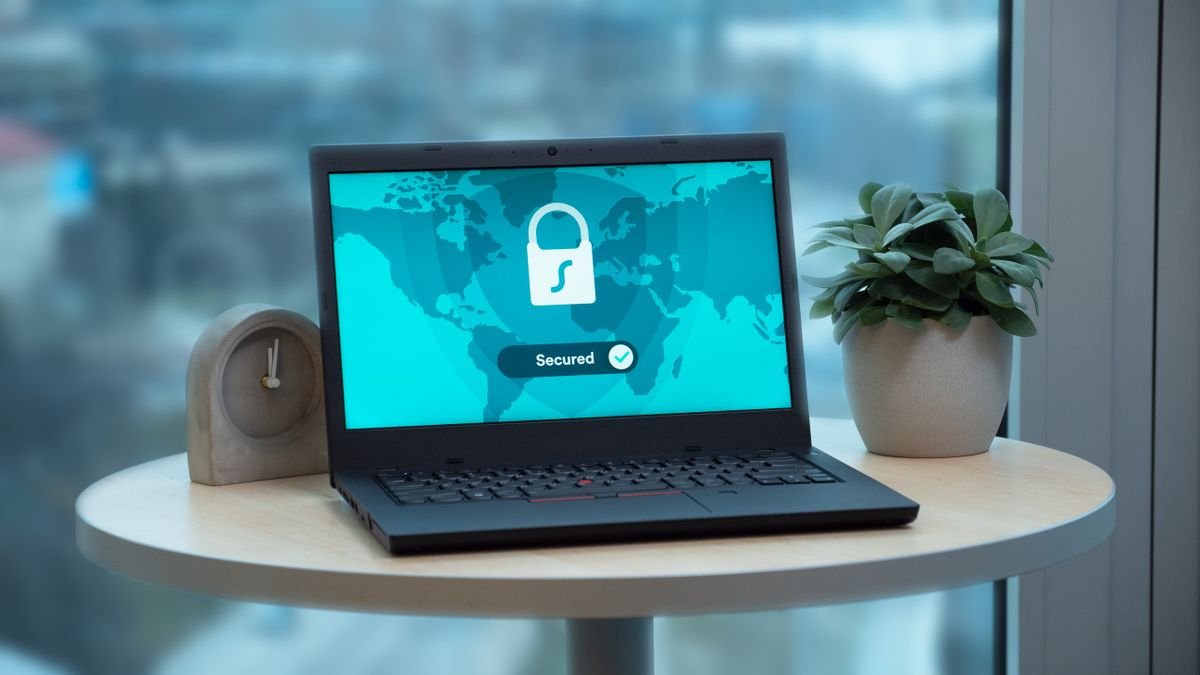
The essential WordPress security checklist for 2026 — updates, strong passwords, two-factor authentication, firewalls, off-site backups, and more, with clear actions to lock down your site against hackers.
WordPress powers over 40% of all websites, which makes it the single biggest target for hackers online. Most breaches aren't the result of sophisticated attacks — they happen because of outdated software, weak passwords, and skipped basics. The good news is that securing a WordPress site is largely a matter of discipline. Use this essential WordPress security checklist for 2026 to lock down your site step by step, from the five-minute wins to the deeper hardening that keeps attackers out for good.
Quick WordPress security checklist for 2026
Here is the full checklist at a glance — each item is explained in detail below:
- ✅ Keep WordPress core, themes, and plugins updated
- ✅ Use strong, unique passwords with a password manager
- ✅ Enable two-factor authentication (2FA) or passkeys
- ✅ Protect your login page from brute-force attacks
- ✅ Install a trusted security plugin
- ✅ Force HTTPS with a valid SSL certificate
- ✅ Add a Web Application Firewall (WAF)
- ✅ Run automated, off-site backups
- ✅ Set correct file permissions and disable dashboard file editing
- ✅ Use least-privilege user roles
- ✅ Remove unused themes and plugins
- ✅ Keep PHP on a supported version
Key takeaways
- Updates are your #1 defense — most hacked WordPress sites were running outdated software.
- The login page is the front door — 2FA plus brute-force protection stops the most common attack.
- Backups are your safety net — if everything else fails, an off-site backup gets you online again.
- Least privilege matters — give every user only the access they actually need.
- Security is ongoing, not one-time — schedule scans, updates, and backup checks.
1. Keep WordPress core, themes, and plugins updated
Outdated software is the number one cause of WordPress hacks. Every update patches known vulnerabilities that attackers actively scan for. Enable automatic updates for minor core releases and security patches, and check weekly for theme and plugin updates. Before any major update, take a backup so you can roll back if something breaks.
2. Use strong, unique passwords with a password manager
Weak and reused passwords are behind a huge share of account breaches. Every admin account should have a long, random, unique password — and no one should be reusing it anywhere else. Use a password manager like Bitwarden or 1Password to generate and store them, so strong security doesn't depend on memory.
3. Enable two-factor authentication (2FA) or passkeys
Two-factor authentication is one of the most effective things you can do in 2026. Even if an attacker steals a password, they can't log in without the second factor. Add 2FA via an authenticator app (not SMS) using a plugin like Wordfence Login Security or Solid Security. Where supported, adopt passkeys for passwordless, phishing-resistant logins.
4. Protect your login page from brute-force attacks
Bots hammer wp-login.php with thousands of password guesses. Shut this down by:
- Limiting login attempts so accounts lock after a few failures.
- Avoiding the default "admin" username — create a unique admin name instead.
- Changing or hiding the login URL to dodge automated bots.
- Adding a CAPTCHA to the login form.
5. Install a trusted security plugin
A good security plugin bundles malware scanning, firewall rules, and login protection in one place. Choose one reputable option — such as Wordfence, Sucuri, or Solid Security — and configure it properly. Don't stack multiple security plugins; they can conflict and slow your site down.
6. Force HTTPS with a valid SSL certificate
HTTPS encrypts data between your site and its visitors, protecting logins and form submissions from being intercepted. Most hosts offer free SSL via Let's Encrypt. Install the certificate, then force all traffic to HTTPS so there is no unencrypted version of your site accessible.
7. Add a Web Application Firewall (WAF)
A Web Application Firewall filters malicious traffic before it ever reaches your site, blocking common attacks like SQL injection and cross-site scripting. Use a cloud WAF such as Cloudflare or the firewall built into your security plugin. It's one of the strongest layers of protection you can add.
8. Run automated, off-site backups
Backups are your last line of defense — if your site is ever compromised, a clean backup gets you back online fast. Schedule automatic backups with a tool like UpdraftPlus or your host's backup service, and store them off-site (e.g. Google Drive, Amazon S3), not just on the same server. Test a restore periodically so you know it actually works.
9. Set correct file permissions and disable file editing
Lock down the files that run your site:
- Set folders to
755and files to644; setwp-config.phpto600or640. - Disable the built-in theme and plugin editor so a compromised admin account can't inject code. Add this to
wp-config.php:
define( 'DISALLOW_FILE_EDIT', true );10. Use least-privilege user roles
Not everyone needs to be an Administrator. Give each user the lowest role that lets them do their job — Editor, Author, or Contributor. Fewer admin accounts means fewer high-value targets, and it limits the damage if any single account is compromised. Remove accounts that are no longer in use.
11. Remove unused themes and plugins
Every installed theme and plugin is a potential entry point, even when deactivated. Delete anything you're not actively using. Only install themes and plugins from trusted sources — the official WordPress repository or reputable premium developers — and avoid "nulled" (pirated) plugins, which frequently contain malware.
12. Keep PHP on a supported version
Running an outdated PHP version means missing security patches at the server level. In 2026, run a currently supported release (PHP 8.2 or newer). Upgrading via your hosting control panel also gives you a faster, more stable site — a security and performance win at once.
Frequently asked questions
How do I secure my WordPress site from hackers?
Start with the fundamentals: keep WordPress core, themes, and plugins updated; use strong, unique passwords; enable two-factor authentication; and install a trusted security plugin with a firewall. Then add HTTPS, automated off-site backups, and least-privilege user roles. Together these steps block the vast majority of attacks.
Is WordPress secure by default?
WordPress core is actively maintained and reasonably secure out of the box, but most sites are compromised through outdated plugins and themes, weak passwords, or poor hosting — not through core itself. Security depends heavily on how you configure and maintain your specific site.
What is the most important WordPress security step?
Keeping everything updated is the single most important step, because outdated software is the leading cause of WordPress hacks. A very close second is enabling two-factor authentication, which protects your login even if a password is stolen.
Do I really need a security plugin?
Yes, for most sites. A reputable security plugin adds malware scanning, a firewall, and login protection that WordPress doesn't include by default — all from one dashboard. Just avoid running more than one at a time, as they can conflict.
Final thoughts
WordPress security isn't about one magic plugin — it's about consistently doing the basics well. Work through this 2026 checklist top to bottom: update everything, harden your logins, add a firewall, and keep reliable off-site backups. Treat security as an ongoing routine rather than a one-time task, and you'll keep your site — and your visitors' data — safe from the attacks that catch everyone else off guard.