My Favorite VS Code Extensions for WordPress Development
Ibrahim Monir
Full-Stack Developer
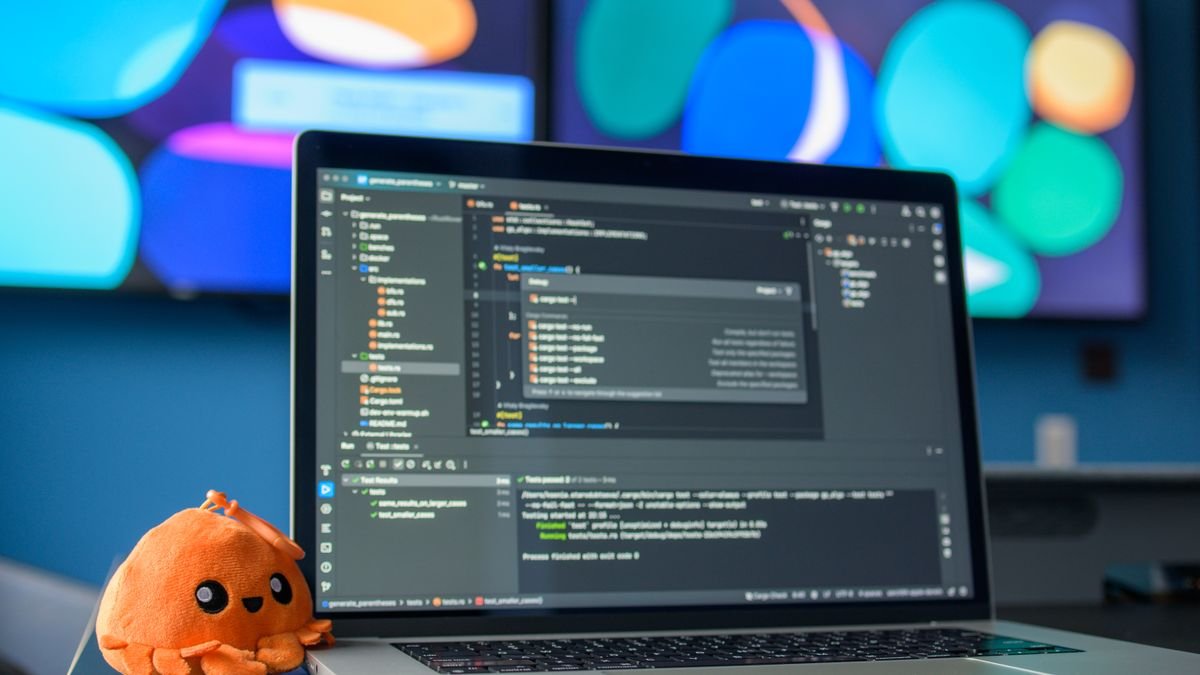
The VS Code extensions I install on every machine for WordPress work — PHP Intelephense, WordPress Snippets, Prettier, GitLens, Error Lens and more — grouped by what they do, with a five-extension starter setup and FAQ.
My favorite VS Code extensions for WordPress development are the ones that give me proper PHP intelligence, WordPress-aware autocomplete, clean formatting, and Git superpowers — led by PHP Intelephense, WordPress Snippets, Prettier, and GitLens. Together they turn VS Code into a fast, WordPress-ready IDE without the bloat of a heavier editor.
I've built WordPress themes and plugins in VS Code for years, and the right extensions make the difference between fighting the editor and flying through code. Here are the ones I install on every new machine, grouped by what they actually do for a WordPress workflow.
Why VS Code is great for WordPress development
VS Code is a free, lightweight code editor from Microsoft that becomes a full WordPress development environment once you add the right extensions. It handles PHP, JavaScript, CSS, and HTML in one place, integrates with Git, and stays fast even on large projects — which is why it's the most popular editor among WordPress developers.
Essential PHP and WordPress extensions
PHP Intelephense
The single most important extension for WordPress work. Intelephense adds fast, accurate PHP autocompletion, go-to-definition, error checking, and function signatures. It understands WordPress core functions, so typing get_ suggests get_post(), get_the_title(), and the rest. This is the one I install first, every time.
WordPress Snippets
Provides ready-made snippets for common WordPress functions and template tags. Instead of remembering the exact syntax of WP_Query or a custom post type registration, you type a short prefix and get the full boilerplate. A huge time-saver for theme and plugin work.
PHP DocBlocker
Generates clean, standardized PHPDoc comment blocks above your functions and classes automatically. Good documentation is part of professional WordPress code, and this makes it effortless.
PHP Sniffer / WordPress Coding Standards
Lints your PHP against the official WordPress Coding Standards (WPCS) so your code matches what the community and clients expect. It flags formatting and best-practice issues as you type, keeping themes and plugins consistent.
Front-end and formatting extensions
Prettier
An opinionated code formatter that automatically cleans up your CSS, JavaScript, and HTML on save. It ends every debate about spacing and quotes, and keeps a codebase looking consistent across a whole team.
ESLint
Catches JavaScript errors and enforces code quality as you write — essential now that so much of WordPress (especially the block editor) is JavaScript-heavy.
Auto Rename Tag
Rename an opening HTML/JSX tag and the closing tag updates automatically. A small thing that saves constant little annoyances while building templates.
IntelliSense for CSS class names in HTML
Autocompletes CSS class names from your stylesheets directly in your markup, so you stop mistyping class names and guessing what's available.
Git and productivity extensions
GitLens
Supercharges the Git built into VS Code. GitLens shows inline blame (who changed each line and when), rich history, and easy diffs. When I'm debugging "why is this code here?", GitLens answers it instantly.
Path Intellisense
Autocompletes file paths as you type them, so linking to images, includes, and assets in a WordPress theme is fast and typo-free.
Error Lens
Displays errors and warnings inline, right on the offending line, instead of making you hover or check the Problems panel. It makes mistakes impossible to miss.
Todo Tree
Collects all your TODO and FIXME comments into one searchable panel — a simple way to track loose ends across a project.
Environment and remote extensions
SFTP / Remote - SSH
Lets you sync files to a server or edit directly on staging over SSH. Useful for quick fixes and for keeping a remote environment in step with local — though for real deployments I still prefer a Git-based pipeline.
DotENV
Adds syntax highlighting for .env files, which is handy when you manage environment-specific WordPress configuration and secrets outside of code.
Nice-to-have extensions that polish the experience
- Material Icon Theme — clearer file-type icons that make big WordPress projects easier to scan.
- Better Comments — color-codes comments by type (alerts, questions, TODOs) for readability.
- Live Server — a one-click local server with live reload for static front-end work.
- indent-rainbow — colorizes indentation so nested template code is easier to follow.
My recommended starter setup
If you install nothing else, start with these five: PHP Intelephense, WordPress Snippets, Prettier, GitLens, and Error Lens. They cover intelligence, autocomplete, formatting, version control, and error visibility — the core of a productive WordPress workflow. Add the rest as you feel the need.
Frequently asked questions
What is the best VS Code extension for WordPress?
PHP Intelephense is the most important, because it gives VS Code fast, accurate PHP and WordPress-aware autocompletion, error checking, and go-to-definition. Pair it with WordPress Snippets and Prettier for a strong core setup.
Is VS Code good for WordPress development?
Yes. VS Code is free, fast, and — with a handful of extensions like Intelephense, GitLens, and Prettier — becomes a full WordPress IDE for PHP, JavaScript, and CSS. It's the most widely used editor among WordPress developers.
Do I need paid extensions for WordPress in VS Code?
No. Every extension in a solid WordPress setup — Intelephense, WordPress Snippets, Prettier, ESLint, GitLens — has a free version that's more than enough for professional work. Some offer optional paid tiers with extra features.
How do I make VS Code understand WordPress functions?
Install PHP Intelephense, which recognizes WordPress core functions out of the box, and add WordPress Snippets for template tags and boilerplate. For even better hints, some developers include the WordPress stubs so core functions autocomplete everywhere.
Final thoughts
You don't need a heavy, expensive IDE to build WordPress sites well — you need VS Code and a focused set of extensions. My essentials come down to PHP intelligence, WordPress-aware snippets, clean formatting, and great Git tooling. Set them up once, and your editor stops getting in the way and starts speeding you up on every theme and plugin you build.